Posts Tagged ‘Windows’

Remote Desktop won’t go back to Full Screen after Mnimization in Windows 7

Tuesday, June 29th, 2010

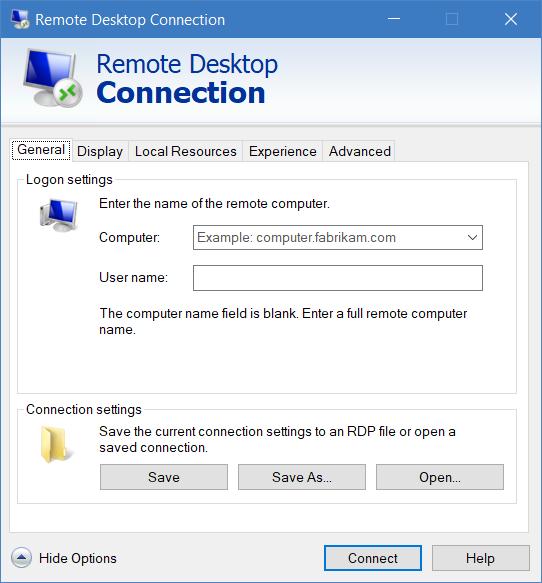
So, last month I finally got my new work system. It is a nice Dell Precision M4500 running an Intel Core i5, 8GB RAM, tons of Hard Drive space, etc. I also made the move to Windows 7 X64 from Windows Vista. In reality, I don’t use many of the super advanced OS features. I wants the OS to “stay out of the way” of my day to day tasks. One of those tasks is remoting into servers and headless desktops. It is not that unusual for me to have several Remote Desktop(MSTSC.exe) windows open at the same time.

Now, I will usually fire up the remote desktop windows in fullscreen mode and take care of some tasks. Once complete, I will minimize the window, like any other window. The problem appears when I restore the Remote Desktop window. Instead of returning to true fullscreen, I find that the Windows 7 Taskbar, or Superbar, blocked the window from returning to full screen. Also, the remote desktop window now has scroll bars.

Luckily, the fix is pretty easy. We all know we can use Ctrl-Alt-End to send a Ctrl-Alt-Del  message to the remote desktop. Similarly, we can use Ctrl-Alt-Break to force the Remote Desktop window to a true full screen. Superbar or not, the Remote Desktop is now full screen again!

Post to Twitter

Unshare Folders in Windows 7

Thursday, April 22nd, 2010

I was formatting the several of my machines the other day and I was moving files back and forth. Sure, for MP3s or videos, I use an external USB hard drive. But there are smaller files, such as the Adobe Flash installer or Opera, which are pretty small. For those smaller files, I use a drop folder. The drop folder is simply a folder where I grant read/write permissions to everyone. That way, people can drop files there for me. Or I have files sitting out there for, destined for another PC. Now, I made the move to Windows 7, so I had to relearn a few things. Once I was done moving files around, I wanted to unshare the drop folders. However, the share dialog looks different from the old Windows 7 versus Vista and XP. What to do, what to do. Well, instead of right-clicking and going to properties, you simply right-click and point to Share with and select “Nobody.” Voila, the share is gone!

Post to Twitter

Could not install the custom actions

Wednesday, February 24th, 2010

Could not install the custom actions. The object could not be found.

I’ve gotten that error more than once from Outlook 2007. The error will appear every time you try to open an eMail and the Calendar may not work at all. Not a good way to start the day. Luckily, there is a quick fix to resolve this error:

  1. Exit outlook completely.
    1. Use Task Manager or Process Explorer to ensure that outlook is no longer running.
  2. In Windows Explorer, navigate to %USERPROFILE%\local settings\application data\microsoft\forms\
  3. Delete the file FRMCACHE.DAT
  4. Restart outlook

Now, whenever you open up an item, the error should no longer appear.

Post to Twitter